AI 3D Model Generator — Convert Any Image or Prompt to 3D Online
Upload a photo of any object and Trellis 3D reconstructs it as a fully textured 3D model — ready to preview, rotate, and download. Switch to text mode and generate from a written description instead. Everything runs in your browser: no GPU, no software, no 3D skills required.
Choose the Right Model for Your Object
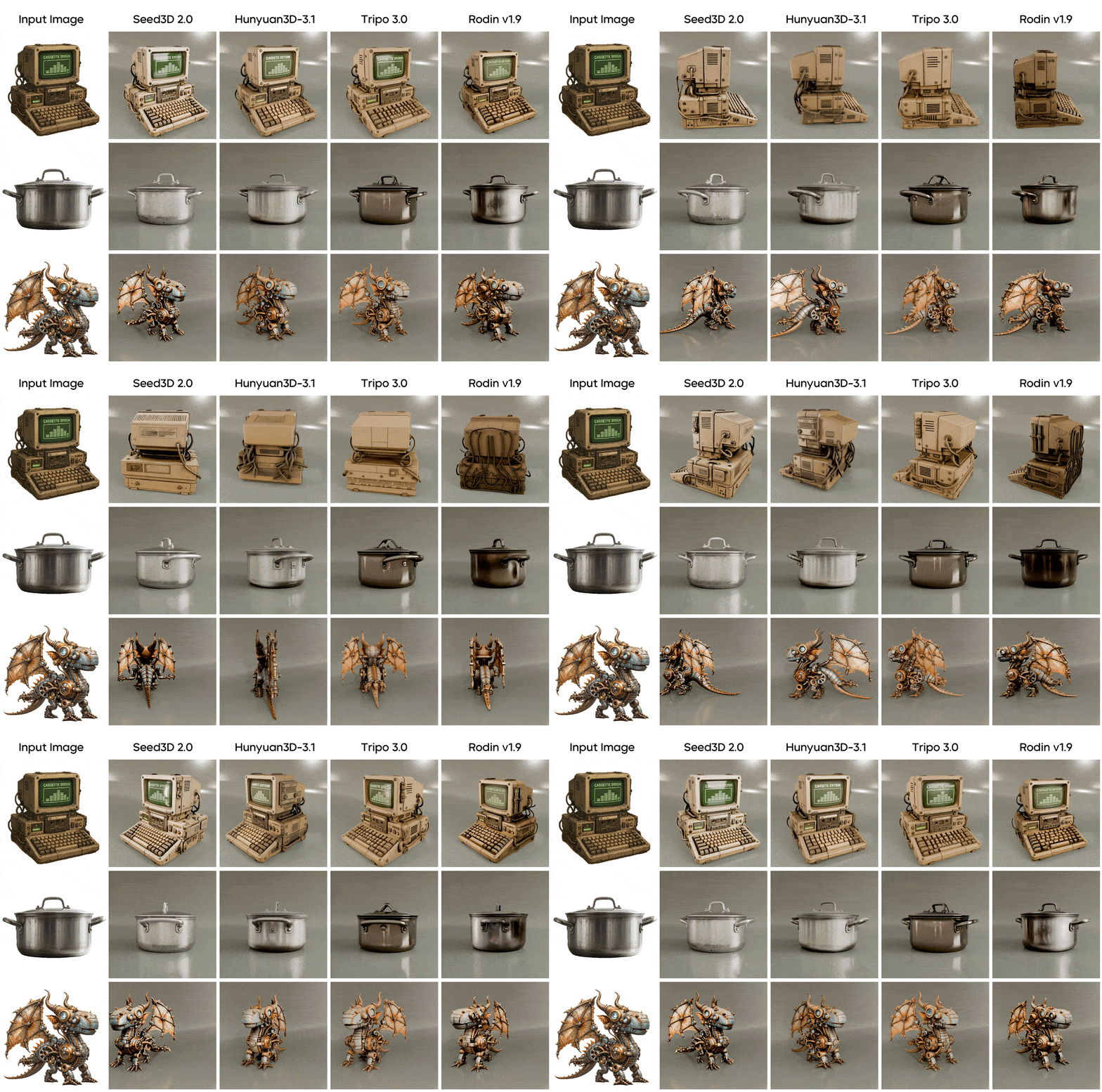
Different objects generate better with different AI architectures. Trellis 3D gives you access to the leading image-to-3D models — pick the one that fits your subject and workflow.
Trellis 3D
Microsoft Research · Complex topology & open surfaces
Built on Microsoft's TRELLIS.2 research, this model uses a field-free sparse voxel structure to reconstruct objects with complex topology — open surfaces, holes, and non-manifold geometry that simpler reconstruction models flatten or discard. Strongest choice for objects with intricate or irregular shapes. MIT License.
Hunyuan 3D
Tencent · High-fidelity textures · Multi-view input
Tencent's Hunyuan 3D accepts a single image, multiple reference angles, or a text description — giving you more control over reconstruction accuracy. Produces the highest-quality texture output among the available models, with consistent results on hard-surface objects, product photography, and architectural subjects. Apache 2.0 license.
Seed 3D
ByteDance · Fast results · Organic shapes
ByteDance's Seed 3D uses a coarse-to-fine reconstruction approach that excels at organic forms, stylized characters, and objects with irregular surface detail. Generates results quickly with strong texture output across a broad range of input types. Supports export in GLB, FBX, OBJ, USDZ, and URDF.
Image to 3D and Text to 3D — Both Workflows, One Generator
Have a reference photo? Upload it — Trellis 3D reconstructs the geometry and generates textured output automatically. No photo? Switch to text mode and describe the object. Type 'a matte black flashlight with a textured grip' or 'a ceramic vase with blue glaze' and the AI builds a 3D model from the description. Both inputs produce the same downloadable output: GLB, OBJ, FBX, or USDZ, ready for your workflow.
Who Uses the Trellis 3D Generator
From game asset pipelines to Shopify product pages — real workflows, not marketing scenarios.
Game Asset Prototyping
Concept art to first-pass 3D prop in one session
Upload character concept art or a prop reference — generate a GLB with geometry and textures, import into Blender for retopology if needed, then export to Unity or Unreal. Replaces the hours-long manual modeling step for non-hero props, decorations, and environment filler objects.
Product 3D Visualization
Turn product photos into interactive 3D and AR
Upload a clean product photo against a plain background — Trellis 3D generates a textured GLB for Three.js, WebXR, or Shopify's built-in 3D viewer. USDZ output enables iOS AR Quick Look so customers can place the product in their space before buying, directly from a product page — no app required.
Photo to 3D Print File
From real object to printable mesh
Photograph an object you want to replicate — a figurine, a decorative piece, a custom prop — and generate a 3D mesh with Trellis 3D. Export as OBJ or GLB, check the mesh in Meshmixer or Blender for watertightness, then slice and print. Best results on solid objects with defined surfaces and minimal undercuts.
GLB Assets for Web3D and AR
WebXR-ready output, no conversion pipeline
GLB is the native format for WebXR, Google model-viewer, and Three.js. Drop Trellis 3D output directly into your scene or use model-viewer for one-line AR on both iOS and Android. USDZ additionally enables native iOS AR Quick Look. No format conversion, no intermediate steps.
Input Guidelines for Better 3D Models
The AI can only reconstruct what it can see. These are the input choices that make the biggest difference to output quality.
Product on White Background
E-commerce, prop generation
"Single white ceramic coffee mug, centered, front-facing, uniform top lighting, no shadows, isolated on pure white background"
Character Concept Art
Game asset, figure design
"A medieval knight in full plate armor, neutral T-pose, centered in frame, 3/4 front angle, solid light gray background, no environmental elements or props"
Text-to-3D for Stylized Props
Fantasy game props, original design
"A weathered wooden staff topped with a glowing amber crystal, runic engravings carved into the shaft, rough bark texture, warm orange magical light radiating from the gem"
Hard-Surface Object
Product design, industrial prototype
"A matte black aluminum flashlight with knurled grip texture, cylindrical body, lens cap at front — front-facing product shot on neutral gray gradient background"
What affects output quality most
- • Use a plain background — White or neutral gray backgrounds prevent background geometry from merging into the object mesh — the single highest-impact change for most photos
- • Minimum 1024×1024px resolution — Higher resolution gives the AI more surface detail to work from; blurry or heavily compressed images produce less accurate geometry, especially on curved surfaces
- • Single subject, centered — The AI reconstructs one foreground object; multiple overlapping objects or cluttered scenes confuse boundary detection and degrade mesh quality
- • 3/4 angle or front-facing with depth visible — An angle that shows both the front and one side gives the reconstruction more depth cues; flat front-only views cause the AI to guess side geometry
How to Generate a 3D Model — Step by Step
The generator is at the top of this page. Here is what each setting does and when it matters.
Prepare Your Input
For image-to-3D: upload a JPG, PNG, or WebP image — a product photo, character art, or object shot. Use a plain background and good even lighting. For text-to-3D: use the prompt field and describe the object's shape, material, and surface detail specifically.
Choose a Model and Set Parameters
Select the AI model that fits your object type. Adjust the polygon count based on your output use: lower for web and game engines, higher for renders and archival files. Click Generate — the AI runs in the cloud and returns a 3D preview in your browser.
Preview, Inspect, and Download
Orbit, zoom, and inspect the geometry in the interactive 3D viewer before committing to a download. Export in the format your project needs — GLB, OBJ, FBX, or USDZ. Use the GIF export to share a 360° rotating preview without requiring a 3D viewer.
More Tools on Trellis 3D
Generate images, videos, and voice alongside your 3D models — all from the same platform.
Frequently Asked Questions About AI 3D Model Generation
Common questions about how the generator works, which model to choose, and how to get the best results.
Generate Your First 3D Model Free — No GPU, No Install
Upload a photo or type a description. The AI generates a fully textured 3D model in your browser — ready to preview, inspect, and download in GLB, OBJ, FBX, or USDZ. The generator is at the top of this page.